Author: admin

  • Turn a Drawing into a Realistic Image with AI

    Turn a Drawing into a Realistic Image with AI

    🎨 Sketch to Real Image

    Turning a drawing into a realistic image with AI helps transform sketches, hand-drawn concepts, illustrations, or rough ideas into more detailed and realistic visuals. This feature is useful for designers, content creators, product teams, artists, and anyone who wants to visualize an idea more clearly.

    AI sketch to realistic image feature illustration
    AI can use a sketch as a base and generate a more realistic visual from it.

    📌 Quick Summary

    • Convert sketches, drawings, or concept art into realistic images.
    • Useful for product ideas, character concepts, interior design, and visual storytelling.
    • AI analyzes lines, layout, shapes, and visual structure to generate a more detailed result.
    • The clearer the input drawing, the better the final image usually becomes.

    🧠 What is sketch-to-real image conversion?

    Sketch-to-real image conversion is an AI-powered process that takes a drawing, rough sketch, or concept illustration and turns it into a more realistic image. The input can be a hand-drawn sketch, product concept, character design, architecture draft, or simple visual idea.

    Instead of manually redrawing everything in professional design software, users can use AI to quickly preview how an idea might look as a realistic image.

    Before and after sketch to realistic image AI conversion
    Example of a sketch converted into a realistic image with AI.

    ⚙️ How does AI turn a drawing into a realistic image?

    ✏️

    1. Detects the sketch lines

    AI analyzes the lines, shapes, layout, and main subject of the drawing.

    🧩

    2. Understands the idea

    The system identifies whether the image represents a person, object, product, or scene.

    🖼️

    3. Adds realistic details

    AI adds lighting, texture, colors, depth, and visual details to the image.

    4. Generates the final image

    The result is a more realistic visual based on the original drawing.

    🚀 Who can use this feature?

    • Designers: quickly develop visual ideas from rough sketches.
    • Concept artists: turn early ideas into presentation-ready visuals.
    • Product teams: visualize product concepts before production.
    • Interior and architecture creators: turn space sketches into more realistic scenes.
    • Content creators: create unique visuals for blogs, videos, and social media.

    📌 Tips for better sketch-to-image results

    💡 Tip: A clearer sketch with a recognizable subject and simple layout usually helps AI generate a more accurate image.

    • Use a sketch with enough resolution and visible lines.
    • Avoid drawings that are too messy or overloaded with unnecessary details.
    • Add a short prompt or style description if the tool supports it.
    • Keep the main subject clear within the frame.
    • Review the result to make sure it still matches the original idea.

    🎨 Turn Your Sketch into a Realistic Image

    Upload your drawing or sketch to Picaiplus and let AI turn it into a more realistic visual. Try Sketch to Image

    ❓ Frequently Asked Questions

    Can I use a hand-drawn sketch?

    Yes. Hand-drawn sketches, rough drawings, and simple illustrations can be used as long as the subject is clear enough.

    Will AI keep the original idea?

    AI can preserve the main layout and subject, but some details may change depending on the input image and generation style.

    Can this be used for product design?

    Yes. It is useful for visualizing early product concepts and presenting design ideas more clearly.

    ✅ Conclusion

    The AI sketch-to-real image feature helps users quickly visualize creative ideas. It is useful for design, concept art, product planning, and content creation. For the best results, use a clear drawing with a strong subject and simple composition.
  • How to Remove Background with AI Quickly and Easily

    How to Remove Background with AI Quickly and Easily

    🖼️ AI Background Remover

    Removing a background with AI allows you to separate the main subject from an image in just a few seconds. This feature is useful for product photos, profile pictures, marketing banners, social media content, website design, and online store visuals.

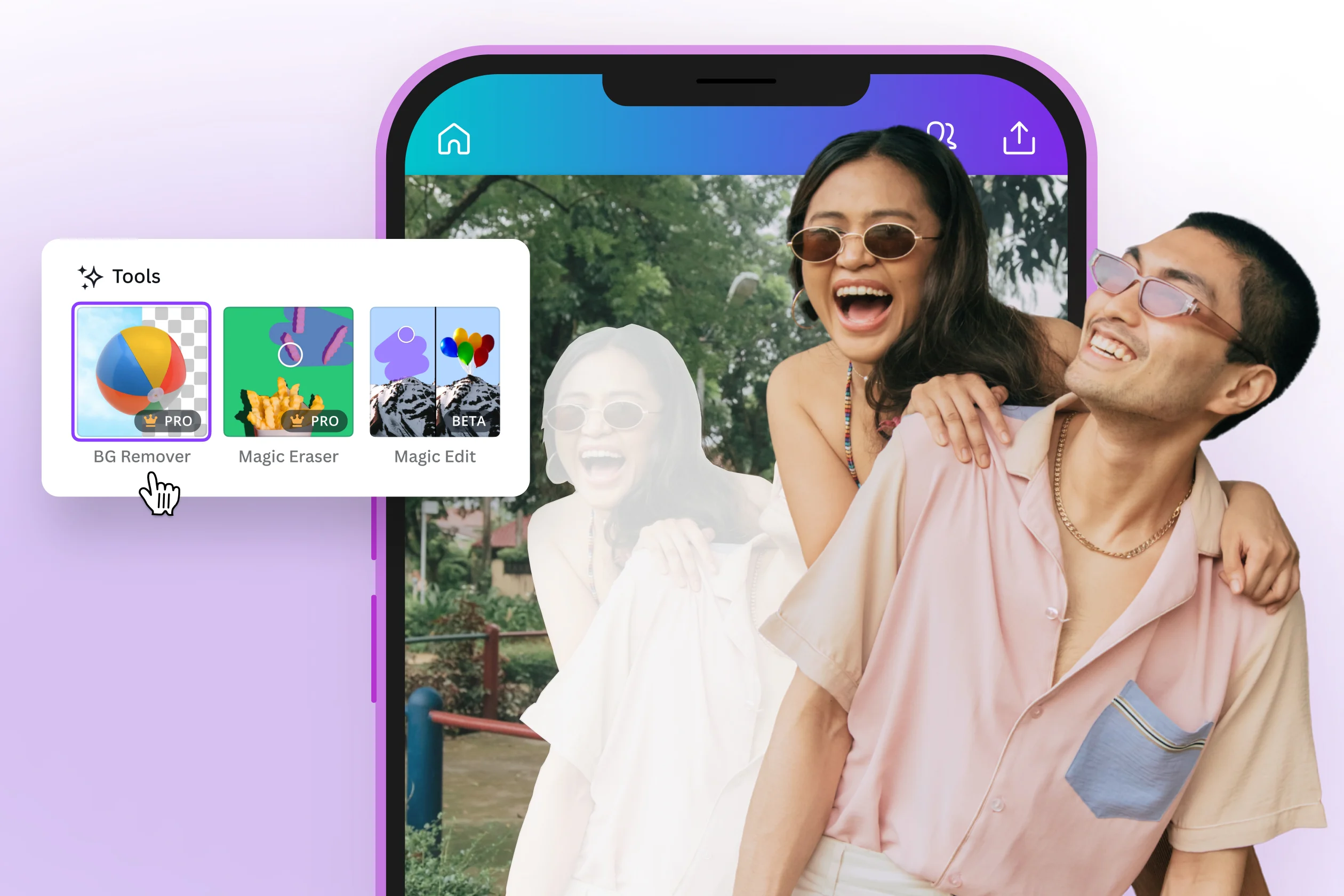
    AI can automatically detect the subject and remove the background behind it.

    📌 Quick Summary

    • AI background removal helps separate people, products, or objects from the original background.
    • It is suitable for product photos, portraits, design materials, and advertising content.
    • No Photoshop skills or professional editing experience are required.
    • The result can be used with a transparent background, a new background, or in marketing designs.

    🧠 What is AI background removal?

    AI background removal is the process of using artificial intelligence to identify the main subject in an image and separate it from the background. Instead of manually selecting the subject with editing tools, AI can analyze edges, hair, clothing, objects, and product shapes to create a clean cutout.

    This feature is especially helpful for online sellers, designers, marketers, and content creators who need clean and professional images for websites, ads, social media, or e-commerce platforms.

    Example of an image before and after background removal with AI.

    🛠️ How to remove background with AI step by step

    📤

    Step 1: Upload your image

    Choose the image you want to edit. For best results, use a photo with a clear subject.

    🤖

    Step 2: Let AI detect the subject

    The system analyzes the image and identifies the main person, object, or product.

    ✂️

    Step 3: Remove the background

    AI removes the background and creates a transparent or replaced background image.

    ⬇️

    Step 4: Download the result

    Download the final PNG image or use it in your design, website, or product listing.

    🚀 When should you use an AI background remover?

    • Product photos: create white, transparent, or consistent backgrounds for online stores.
    • Profile pictures: remove messy backgrounds and create cleaner portraits.
    • Marketing banners: separate subjects and place them into posters, ads, or thumbnails.
    • Social media content: create more eye-catching visuals for posts and short videos.
    • E-commerce websites: make product photos look more professional and consistent.

    📌 Tips for better background removal

    💡 Tip: Images with good lighting, a clear subject, and a simple background usually produce better AI cutout results.

    • Use a photo where the subject is clearly visible.
    • Avoid images where the subject and background have very similar colors.
    • Do not use images that are too blurry or too small.
    • For product images, shoot in a well-lit environment.
    • After removing the background, check details such as hair, clothing edges, and small objects.

    ✨ Try AI Background Remover

    Upload your image to Picaiplus and let AI remove the background automatically in just a few steps. Remove Background Now

    ❓ Frequently Asked Questions

    Is AI background removal accurate?

    It can be highly accurate in many cases, especially when the image has a clear subject. Complex backgrounds, messy hair, or blurry subjects may require additional checking.

    Which file format should I use after removing the background?

    Use PNG if you need a transparent background. If you add a new background and want a smaller file size, JPG or WebP can be suitable for websites.

    Can I remove background from product photos?

    Yes. Product image background removal is one of the most common uses of this AI feature.

    ✅ Conclusion

    AI background removal is a fast and convenient way to create clean, professional-looking images. With a good input photo and the right AI tool, you can prepare product images, marketing visuals, social media content, and website graphics much more efficiently.