🖼️ AI Background Remover
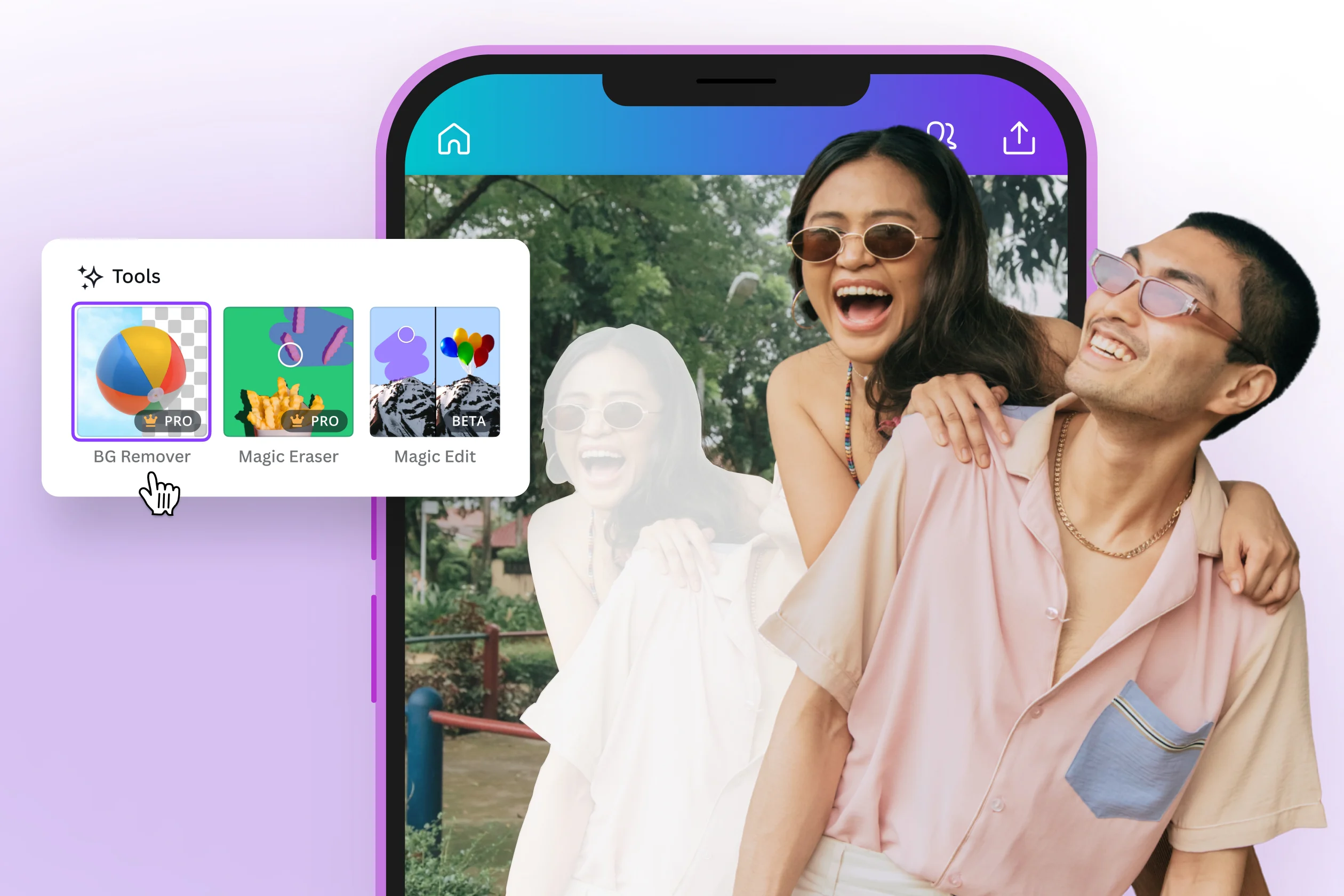
Removing a background with AI allows you to separate the main subject from an image in just a few seconds. This feature is useful for product photos, profile pictures, marketing banners, social media content, website design, and online store visuals.
📌 Quick Summary
- AI background removal helps separate people, products, or objects from the original background.
- It is suitable for product photos, portraits, design materials, and advertising content.
- No Photoshop skills or professional editing experience are required.
- The result can be used with a transparent background, a new background, or in marketing designs.
🧠 What is AI background removal?
AI background removal is the process of using artificial intelligence to identify the main subject in an image and separate it from the background. Instead of manually selecting the subject with editing tools, AI can analyze edges, hair, clothing, objects, and product shapes to create a clean cutout.
This feature is especially helpful for online sellers, designers, marketers, and content creators who need clean and professional images for websites, ads, social media, or e-commerce platforms.
🛠️ How to remove background with AI step by step
📤
Step 1: Upload your image
Choose the image you want to edit. For best results, use a photo with a clear subject.
🤖
Step 2: Let AI detect the subject
The system analyzes the image and identifies the main person, object, or product.
✂️
Step 3: Remove the background
AI removes the background and creates a transparent or replaced background image.
⬇️
Step 4: Download the result
Download the final PNG image or use it in your design, website, or product listing.
🚀 When should you use an AI background remover?
- Product photos: create white, transparent, or consistent backgrounds for online stores.
- Profile pictures: remove messy backgrounds and create cleaner portraits.
- Marketing banners: separate subjects and place them into posters, ads, or thumbnails.
- Social media content: create more eye-catching visuals for posts and short videos.
- E-commerce websites: make product photos look more professional and consistent.
📌 Tips for better background removal
💡 Tip: Images with good lighting, a clear subject, and a simple background usually produce better AI cutout results.
- Use a photo where the subject is clearly visible.
- Avoid images where the subject and background have very similar colors.
- Do not use images that are too blurry or too small.
- For product images, shoot in a well-lit environment.
- After removing the background, check details such as hair, clothing edges, and small objects.
✨ Try AI Background Remover
Upload your image to Picaiplus and let AI remove the background automatically in just a few steps. Remove Background Now
❓ Frequently Asked Questions
Is AI background removal accurate?
It can be highly accurate in many cases, especially when the image has a clear subject. Complex backgrounds, messy hair, or blurry subjects may require additional checking.
Which file format should I use after removing the background?
Use PNG if you need a transparent background. If you add a new background and want a smaller file size, JPG or WebP can be suitable for websites.
Can I remove background from product photos?
Yes. Product image background removal is one of the most common uses of this AI feature.
✅ Conclusion
AI background removal is a fast and convenient way to create clean, professional-looking images. With a good input photo and the right AI tool, you can prepare product images, marketing visuals, social media content, and website graphics much more efficiently.
Leave a Reply